
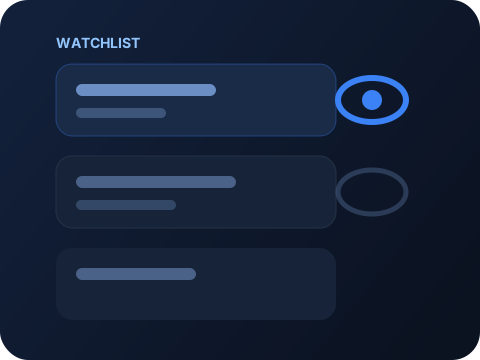
Save markets to Watchlist
Tap the eye on any market or event to pin it. Reorder your list anytime. Drag handles keep your favorites on top.
Documentation
Funding, order types, copytrading, withdrawals and the small things that are easy to miss.
The page you are reading is the same content the bot serves at the Docs button, so a link you send a friend opens correctly whether they tap it in a browser or inside Telegram.
01 / 2WAYS guide
Trade Polymarket prediction markets inside Telegram.
Add picture of app overview
Picture placeholder
2WAYS combines market discovery, trading, trader research, a watchlist, positions, and wallet tools. Prices represent the market's current probability and can change until resolution.
Trades use your linked Polymarket wallet. Outcomes pay according to Polymarket's final resolution.
02 / Setup
Telegram signs your session and identifies your account.
Add picture of Telegram sign-in
Picture placeholder
Open the mini app from @the2waysbot. Telegram initData creates the session, so opening the web address directly cannot load private account data.
If prompted, return to the bot to finish wallet setup. Reopen the mini app when a session expires instead of refreshing an old browser tab.
04 / Find a market
Search events, browse categories, and check live market data before trading.
Add picture of market discovery
Picture placeholder
Use search and category tabs such as Trending, Politics, Sports, and Crypto. Event cards group related markets, while live games show current scores and quick crypto cards open recurring UP/DOWN windows.
A market page shows its rules, outcomes, price history, live probability, order book, liquidity, and your positions. In multi-market events, use the market picker to switch without leaving the page.
05 / Place orders
Choose an outcome, order side, and execution method.
Add picture of trade ticket
Picture placeholder
Select Yes/No, Up/Down, or another outcome. Buy market orders use a USD budget; sell market orders use shares. Quick buttons set common amounts or percentages, and the ticket shows held shares and balance.
Market orders execute against available liquidity. Limit orders use a price in cents and a share count, and can remain open until filled, canceled, or expired. You can set an expiration or leave it open.
06 / Portfolio
Track open, closed, and historical account activity.
Add picture of positions
Picture placeholder
Open shows outcome, shares, cost, current value, average price, current price, and PnL. Expand an eligible position to buy more or sell. Closed shows realized PnL, and Activity lists buys, sells, merges, splits, and redemptions.
Open limit orders show side, outcome, price, size, fill progress, and current price when useful. Cancel one order or use Cancel all. Claim a winning resolved position, or Claim all when several are ready.
07 / Saved markets
Keep important events and markets in one ordered board.
Add picture of watchlist
Picture placeholder
Use the watchlist control on an event or market, or tap an empty slot and choose an item. Event tiles include top markets, probability, liquidity, volume, and end date when available.
The list holds up to 20 items and syncs with your account. Long-press a tile, drag it to a new slot, and release to reorder. Use the X control to remove it.
08 / Research
Compare public Polymarket activity before opening a market.
Add picture of traders
Picture placeholder
In the Traders tab, browse the leaderboard by 1 day, 1 week, 1 month, or all time, and rank by PnL or volume. Search by trader name or wallet address. Tap Copytrade on a row or profile to start a follow.
A profile shows verification, public bio and links, wallet address, rank, value, open PnL, volume, and positions. Open, Closed, and Activity tabs link back to the related markets.
09 / Follow traders
Follow a wallet, get Telegram alerts, watch the largest recent trades, and backtest a strategy before you risk cash.
Add picture of the Traders area
Picture placeholder
Open Traders in the bottom bar. The header bar switches Copytrade, Tracker, Whales, and Traders. Copytrade lists every live follow you manage.
To start one, open Whales or Traders, pick a wallet, and tap Copytrade. Choose sizing (fixed, percent, or mirror) and 2WAYS will auto-buy when that wallet trades. Pause or delete a follow from this tab.
A backtest watches the same trader with virtual cash. Buys, sells and settlements land in a ledger — never in your wallet — so you can see whether a strategy would have been profitable before you go live.
It only reacts to trades from the moment you create it. It does not replay the trader's history. You can run up to three backtests at once to compare sizing side by side.
The Tracker tab lists wallets you watch for alerts. Add one from a trader profile or this tab. When that trader buys or sells on Polymarket, 2WAYS DMs you on Telegram.
Tracker never places an order and never copies a trade. It is notifications only, so you decide what to do yourself.
The Whales tab lists the largest recent Polymarket trades. Each row shows the wallet, market, side, and size.
Open a whale to inspect their book, or tap Copytrade if you want to follow them.
The Traders tab is the public leaderboard. Filter by 1 day, 1 week, 1 month, or all time, and rank by PnL or volume. Search by name or wallet.
A profile shows verification, bio, rank, value, open PnL, and the same Open, Closed, and Activity tabs.
10 / Shared conviction
Find markets held by several traders grouped in the same bundle.
Add picture of PolyMatcher
Picture placeholder
PolyMatcher lists bundles, favorites, and trending groups. Open a bundle to see its traders and the markets where their positions overlap.
Shared conviction means several tracked traders hold the same market direction. Check each trader, position size, market liquidity, and current price before opening the market in 2WAYS.
11 / Funds
Review account value and move supported assets carefully.
Add picture of wallet
Picture placeholder
Wallet shows total value, cash, 30-day PnL, a PnL chart, Telegram profile, Volts, referrals, and the optional 2FA vault. Deposit lets you select a supported chain and asset, then copy or scan the matching address and check the minimum.
Withdraw requires a destination chain, asset, valid recipient, amount, and quote. Review fees and the final destination before confirming. History tracks withdrawal status. The vault can protect funds with an authenticator code.
12 / Preferences
Change appearance, language, and account options from Wallet.
Add picture of settings
Picture placeholder
Open Wallet, then the gear. Copy the linked wallet address, choose one of the available themes, or switch between English, German, Spanish, French, Turkish, Russian, and Chinese.
Settings also opens this documentation, Terms, Privacy, app version, logout, and the private-key handoff to the Telegram bot. Logout closes the mini app when Telegram allows it.
13 / Good habits
Small checks can prevent common order and wallet mistakes.
Add picture of tips
Picture placeholder
Read the market question and resolution rules, compare the chart with the order book, and check liquidity. Confirm the selected outcome, buy or sell side, amount, shares, price, expiration, and fees.
Start with small amounts, use limits when price matters, and keep enough cash for intended trades. Review open orders and claim eligible winnings regularly.
Short visual guides for common tasks.
Tap the eye on any market or event to pin it. Reorder your list anytime. Drag handles keep your favorites on top.
14 / Help
The 2WAYS Discord is both a support server and a place to meet the community.
Add picture of the Discord community
Picture placeholder
Join the Discord server to ask questions, report problems, share feedback, and get help from the 2WAYS team and other community members.
The community also discusses product updates, exchanges ideas, and shares how people use 2WAYS. Use the Discord icon in the app header or the link below to join.
15 / Recovery
Most account errors are solved by retrying or reopening from the bot.
Add picture of retry screen
Picture placeholder
If data does not load, check your connection and tap Retry or refresh. The offline banner clears when the app reconnects. If prices look stale, return to the market or refresh the relevant section.
For missing, invalid, or expired Telegram sessions, close the mini app and reopen it from @the2waysbot. Do not reload a copied mini-app URL. If setup or wallet actions remain blocked, continue in the bot.